The Commerce Kit is currently in beta. APIs may change before the stable release. For additional details on Commerce Kit, see the Commerce Kit documentation.
The PaymentButton component from the
Commerce Kit provides a
complete payment interface—handling wallet connection, token selection,
transaction processing, and UI state out of the box.
Installation
pnpm add @solana-commerce/kit
Basic Usage
import { PaymentButton } from "@solana-commerce/kit";function Checkout() {return (<PaymentButtonconfig={{merchant: { name: "My Store", wallet: "your-wallet-address" },mode: "tip"}}onPaymentSuccess={(signature) => {console.log("Payment confirmed:", signature);}}/>);}
Check out the Commerce Kit Playground to configure and test the component.
Tip Button
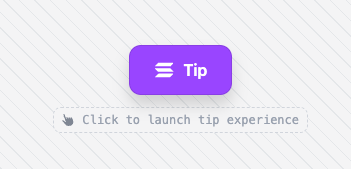 Tip Button
Pay Modal
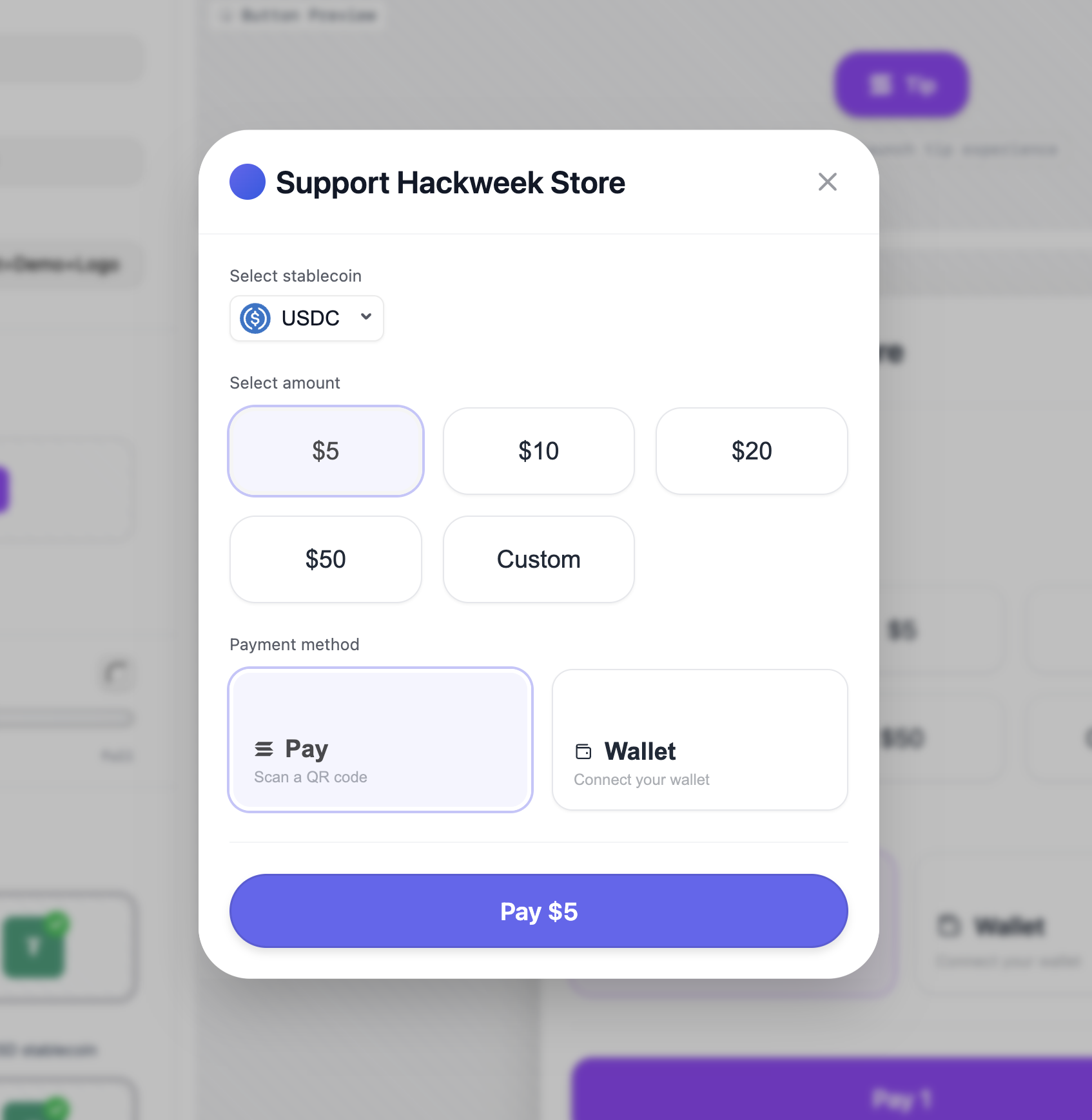 Pay Modal
Solana Pay QR Code Modal
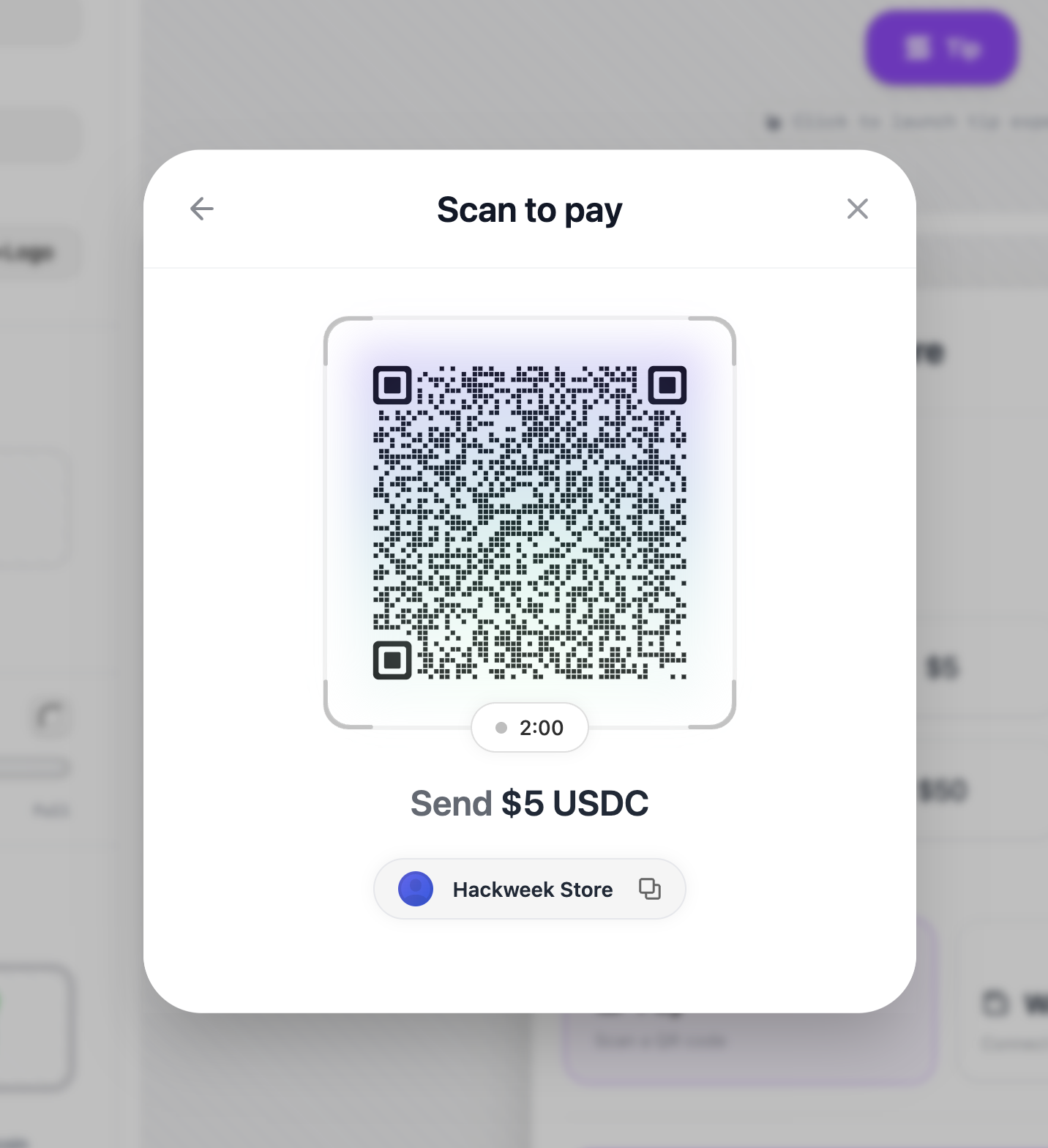 Solana Pay QR Code Modal
Payment Modes
The mode option determines the button behavior:
| Mode | Description |
|---|---|
tip | User chooses their own amount (donations/tips) |
Configuration
Required Config
| Property | Type | Description |
|---|---|---|
merchant.name | string | Business name shown during checkout |
merchant.wallet | string | Solana wallet address to receive payments |
mode | 'tip'` | Payment flow type |
Optional Config
| Property | Type | Description |
|---|---|---|
network | 'mainnet' | 'devnet' | Solana network (default: 'mainnet') |
rpcUrl | string | Custom RPC endpoint |
allowedMints | string[] | Restrict accepted tokens by mint address |
showQR | boolean | Enable QR code payment option |
theme | ThemeConfig | Visual customization (colors, border radius, etc.) |
Event Callbacks
| Callback | Parameters | Description |
|---|---|---|
onPaymentSuccess | (signature: string) | Transaction confirmed on-chain |
onPaymentError | (error: Error) | Payment failed at any stage |
onPaymentStart | () | Payment flow initiated |
onCancel | () | User cancelled the payment |
Custom Trigger
Replace the default button with your own element:
<PaymentButtonconfig={{merchant: { name: "Shop", wallet: "address" },mode: "tip"}}><button className="my-custom-button">Pay with Solana</button></PaymentButton>
Is this page helpful?