PaymentButtonコンポーネントは、Solana決済を受け付けるための完全な決済インターフェースを提供するReactコンポーネントです。ウォレット接続、トークン選択、トランザクション処理、UIの状態管理を内部で処理します。標準で、カスタマイズ可能なボタンとモーダルが付属しています:
チップボタン
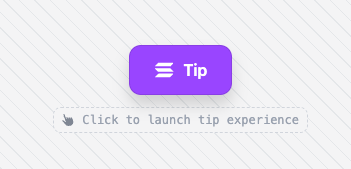 チップボタン
支払いモーダル
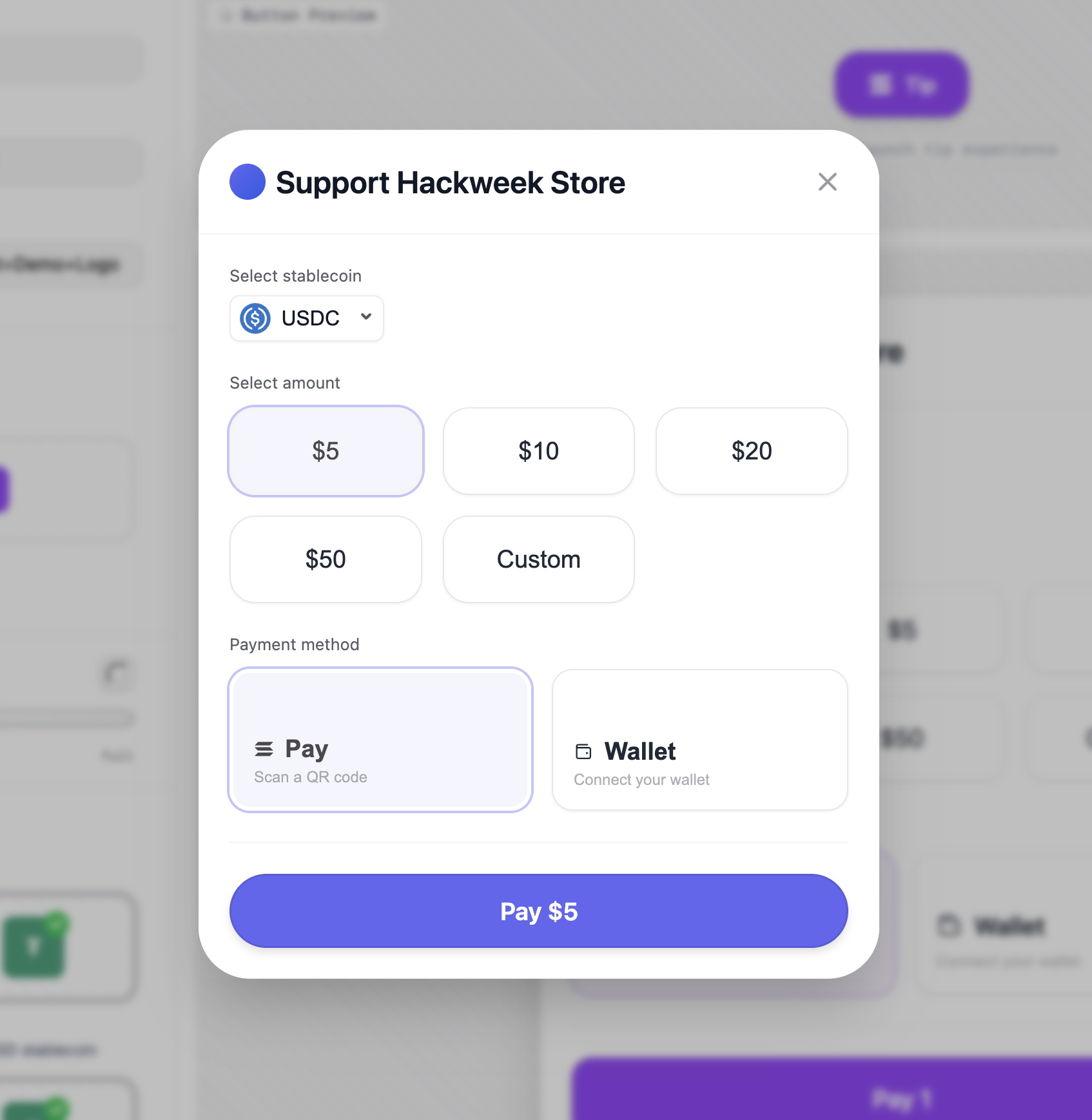 支払いモーダル
Solana Pay QRコードモーダル
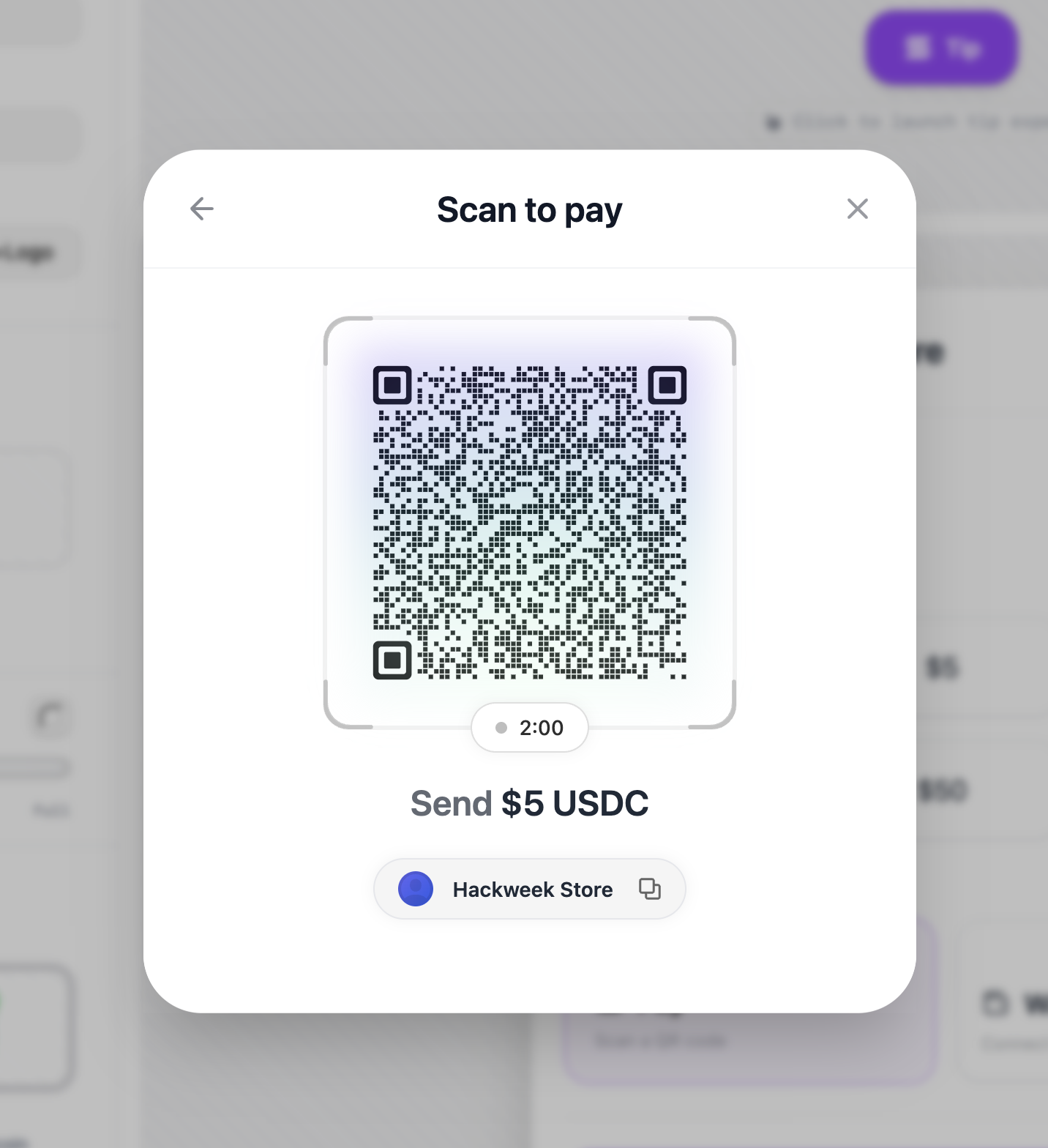 カートモーダル
インストール
pnpm add @solana-commerce/kit
コンポーネントのプロパティ
PaymentButtonProps
PaymentButtonコンポーネントは以下のプロパティを受け付けます:
必須プロパティ
config(SolanaCommerceConfig) - 決済コンポーネントのメイン設定オブジェクトです。これが唯一の必須プロパティです。以下のSolanaCommerceConfigを参照してください。
オプションプロパティ
-
paymentConfig(PaymentConfig) - 商品、価格のオーバーライド、カスタム価格取得機能を含む決済固有の設定です。以下のPaymentConfigを参照してください。 -
onPayment((amount: number, currency: string) => void) - ユーザーが金額と通貨を確認した後、決済が開始されたときに呼び出されます。決済金額(lamportsではなくトークン単位)と通貨識別子を受け取ります。 -
onPaymentStart(() => void) - 実際のトランザクションが送信される前に、決済フローが開始されたときに呼び出されます。ローディング状態の表示や分析トラッキングに使用します。 -
onPaymentSuccess((signature: string) => void) - トランザクションがオンチェーンで確認されたときに呼び出されます。トランザクション署名を受け取ります。注文ステータスの更新や確認メールの送信などはここで行うべきです。 -
onPaymentError((error: Error) => void) - いずれかの段階(ウォレット接続、トランザクション送信、または確認)で決済が失敗したときに呼び出されます。エラーオブジェクトには何が問題だったかの詳細が含まれます。 -
onCancel(() => void) - ユーザーが決済フローを明示的にキャンセルしたとき(モーダルを閉じるかキャンセルをクリック)に呼び出されます。 -
children(React.ReactNode) - オプションのカスタムトリガー要素。指定した場合、デフォルトの決済ボタンを置き換えます。子要素はクリック可能である必要があります(例:ボタン)。 -
className(string) - トリガーボタンに適用されるCSSクラス名(カスタム子要素が提供されていない場合のみ使用)。 -
style(React.CSSProperties) - トリガーボタンに適用されるインラインスタイル(カスタム子要素が提供されていない場合のみ使用)。 -
variant('default' | 'icon-only') - ボタンのバリエーション。デフォルトではテキストとアイコンが表示され、'icon-only'では決済アイコンのみが表示されます。
設定オブジェクト
SolanaCommerceConfig
configプロパティに渡されるメイン設定オブジェクト。
必須フィールド
-
merchant(MerchantConfig) - マーチャント情報と支払い受取先の詳細。MerchantConfigを参照してください。 -
mode('cart' | 'tip' | 'buyNow') - ボタンの表示テキストとUIフローを決定する決済モード:'buyNow'- 固定金額での単一商品購入'cart'- 複数商品のショッピングカート'tip'- ユーザーが金額を選択(寄付/チップ)
オプションフィールド
-
position('inline' | 'overlay') - 決済UIの表示方法。デフォルトは'overlay'です。'overlay'- モーダル/ドロワーオーバーレイで開く'inline'- ページに直接埋め込み
-
theme(ThemeConfig) - ビジュアルカスタマイズオプション。ThemeConfigを参照してください。 -
network('mainnet' | 'devnet' | 'testnet') - 使用するSolanaネットワーク。デフォルトは'mainnet'です。 -
rpcUrl(string) - カスタムRPCエンドポイントURL。指定しない場合、選択されたネットワークのデフォルト公開エンドポイントが使用されます。 -
allowedMints(string[]) - 決済方法を制限するトークンミントアドレスの配列。指定しない場合、サポートされているすべてのトークン(SOL、USDC、USDT)が利用可能です。 -
showQR(boolean) - QRコード決済オプションを表示するかどうか。モバイルおよびSolana Pay統合に便利です。 -
enableWalletConnect(boolean) - ウォレット接続を有効にするかどうか。外部でウォレット接続を処理している場合はfalseに設定してください。 -
showMerchantInfo(boolean) - 決済UIにマーチャント名とロゴを表示するかどうか。 -
debug(boolean) - デバッグ用の詳細なコンソールログを有効にします。
MerchantConfig
支払い受取人とビジネス情報を定義します。
必須フィールド
-
name(string) - チェックアウト時にユーザーに表示されるビジネス名またはマーチャント名。 -
wallet(string) - 支払いを受け取るSolanaウォレットアドレス。有効なbase58エンコードされたSolanaアドレスである必要があります。
オプションフィールド
-
logo(string) - マーチャントロゴ画像のURL。showMerchantInfoが有効な場合、決済UIに表示されます。 -
description(string) - ユーザーに表示されるビジネスの説明。
ThemeConfig
決済UIの視覚的なカスタマイズ。
すべてのフィールドはオプションで、適切なデフォルト値が設定されています。
-
primaryColor(string) - ボタンやアクセントに使用されるプライマリブランドカラー。デフォルト:'#9945FF'(Solanaパープル)。 -
secondaryColor(string) - セカンダリアクセントカラー。デフォルト:'#14F195'(Solanaグリーン)。 -
backgroundColor(string) - モーダル/コンテナの背景色。デフォルト:'#ffffff'。 -
textColor(string) - プライマリテキストカラー。デフォルト:'#111827'。 -
borderRadius('none' | 'sm' | 'md' | 'lg' | 'xl' | 'full') - UI要素に適用される角の丸み。デフォルト:'lg'。'none'= 0px'sm'= 12px'md'= 16px'lg'= 20px'xl'= 24px'full'= 完全な丸み(コンテキスト依存)
-
fontFamily(string) - すべてのテキストのフォントファミリー。デフォルト:'system-ui, -apple-system, sans-serif'。 -
buttonShadow('none' | 'sm' | 'md' | 'lg' | 'xl') - ボタンのドロップシャドウ。デフォルト:'md'。 -
buttonBorder('none' | 'black-10') - ボタンのボーダースタイル。デフォルト:'black-10'(控えめな黒のボーダー)。
PaymentConfig
価格、小数点、商品の高度な決済設定。
すべてのフィールドは任意です。
-
products(Product[]) -'cart'または'buyNow'モード用の商品配列。これらのモードを使用する場合は必須です。各商品には以下が含まれます:id(文字列、必須) - 一意の商品識別子name(文字列、必須) - ユーザーに表示される商品名quantity(数値、必須) - この商品の数量price(数値、任意) - 単価(米ドル)unitAmount(数値、任意) -priceフィールドの代替description(文字列、任意) - 商品説明
-
solPriceUsd(number) - 固定SOL価格(米ドル)。テスト時やSOL価格を固定したい場合に使用します。指定しない場合、コンポーネントはCoinGeckoから現在の価格を取得します。 -
getSolPrice(() => Promise<number>) - SOL価格を取得するためのカスタム関数。以下の用途に使用できます:- プライベート価格オラクル
- パブリックAPIのレート制限回避
- カスタム価格ロジック
- エンタープライズアプリケーション
指定しない場合、デフォルトでCoinGeckoのパブリックAPIを使用し、1分間キャッシュされます。
-
tokenDecimals({ [currency: string]: number }) - トークンの小数点精度を上書きします。カスタムトークンに便利です。例:tokenDecimals: {'CUSTOM': 8,'USDC': 6 // Can override defaults} -
fallbackSolPriceUsd(number) - 価格APIが失敗し、キャッシュも利用できない場合のフォールバックSOL価格。これがない場合、価格取得に失敗すると決済UIにエラーが表示されます。
内部フック
PaymentButton
コンポーネントは、状態管理と値の計算のために複数の内部フックを使用します:
useTheme(theme?: ThemeConfig)
ユーザー提供のテーマ設定をデフォルトのテーマ値とマージします。すべてのフィールドが入力された完全な
ThemeConfig オブジェクトを返します。
デフォルトのテーマ値:
primaryColor: '#9945FF'secondaryColor: '#14F195'backgroundColor: '#ffffff'textColor: '#111827'borderRadius: 'lg'fontFamily: 'system-ui, -apple-system, sans-serif'buttonShadow: 'md'buttonBorder: 'black-10'
このフックはメモ化されており、テーマ設定が変更された場合にのみ再計算されます。
useTotalAmount(mode, paymentConfig?)
コマースモードと商品に基づいて、合計支払額を計算します。
モード別の動作:
'tip'モード -0を返します(金額はユーザーが決定)'cart'および'buyNow'モード -paymentConfig.products内のすべての商品のprice * quantityを合計します
このフックはエッジケースを処理します:
- 不正または欠落した価格は
0にデフォルト設定されます - 不正または欠落した数量は
0にデフォルト設定されます - すべての値が有限数であることを保証します
priceとunitAmountの両方の商品フィールドをサポートします
合計金額を数値として返します(cart/buyNowの場合はUSD、tipの場合は0)。
usePaymentUrl(merchant, amount, mode)
支払い用のSolana Pay URLを生成します。このURLは、モバイルウォレットでスキャンするためのQRコードとしてエンコードできます。
戻り値: 以下のクエリパラメータを含むsolana:プロトコルURL:
recipient- 販売者のウォレットアドレスamount- 支払額reference- 一意の支払い参照(タイムスタンプ + ランダム文字列から生成)label- 販売者名(URL安全のためにサニタイズ済み)message- モードに基づくコンテキストメッセージ
販売者のウォレットが無効、または金額が<= 0の場合は、空の文字列を返します。
セキュリティ:
販売者名はsanitizeString()を使用してサニタイズされ、URL インジェクションによるXSS攻撃を防ぎます。
バリデーションとエラー処理
コンポーネントはレンダリング前にバリデーションを実行します:
-
ウォレット検証 -
@solana/kitのisAddress()を使用して、マーチャントウォレットアドレスを検証します。無効な場合は、支払いUIの代わりにエラー状態をレンダリングします。 -
価格のバリデーション - 有効な価格設定が構成されていることを確認します:
'tip'モードの場合: 常に有効(ユーザーが金額を選択)'cart'および'buyNow'モードの場合:totalAmount > 0を検証します
-
SSR安全性 - クライアント側検出を使用してハイドレーションの不一致を防ぎます。
isClient状態により、ブラウザ専用機能(ウォレットの永続化のためのlocalStorageなど)がクライアント側でのみ実行されることを保証します。
コンポーネントアーキテクチャ
PaymentButtonは、すべての子要素を2つのコンテキストプロバイダーでラップします:
-
AppProvider- ウォレット接続状態とコネクタークライアントを提供- 自動接続:デフォルトで無効
- ストレージ:利用可能な場合は
localStorageを使用(クライアント側のみ) - デバッグ モード:設定により構成可能
-
ArcProvider- SolanaブロックチェーンクライアントとRPC接続を提供- ネットワーク:
config.networkから決定 - RPC URL:パブリックエンドポイントへのフォールバックを伴うサーバー側解決を使用
- ネットワーク:
RPC URL解決
このコンポーネントには高度なRPC URL解決機能が含まれています:
config.rpcUrlが提供されている場合は、それを直接使用- それ以外の場合は、信頼性の高いエンドポイントを選択するサーバー側リゾルバーを呼び出し
- 解決に失敗した場合は
https://api.mainnet.solana.comにフォールバックします - 解決はマウント時に非同期で行われ、状態を更新
レンダリングモード
オーバーレイモード(position: 'overlay'またはデフォルト):
- トリガーボタンをレンダリング(カスタムまたはデフォルト)
- レスポンシブモーダル(デスクトップ)またはドロワー(モバイル)で決済UIを開く
- 適応型レイアウトに
ResponsiveShellコンポーネントを使用
インラインモード(position: 'inline'):
- 決済UIをページに直接埋め込み
- トリガーボタン不要
- 専用のチェックアウトページに便利
両方のモードは、セキュリティのためにサンドボックス化されたiframe内で決済インターフェースをレンダリングするために、内部的にSecureIframeShellを使用します。
使用例
基本的な決済
<PaymentButtonconfig={{merchant: {name: "Coffee Shop",wallet: "your-wallet-address"},mode: "buyNow"}}paymentConfig={{products: [{id: "coffee-001",name: "Espresso",price: 4.5,quantity: 1}]}}onPaymentSuccess={(sig) => {console.log("Payment confirmed:", sig);}}/>
カスタム価格取得機能付きチップウィジェット
<PaymentButtonconfig={{merchant: {name: "Content Creator",wallet: "creator-wallet"},mode: "tip"}}paymentConfig={{// Use your own price API to avoid rate limitsgetSolPrice: async () => {const res = await fetch("/custom-api/solana-price");const data = await res.json();return data.price;},// Fallback if your API failsfallbackSolPriceUsd: 200}}/>
カスタムテーマ付きショッピングカート
<PaymentButtonconfig={{merchant: {name: "My Store",wallet: "store-wallet",logo: "/logo.png"},mode: "cart",theme: {primaryColor: "#FF6B6B",backgroundColor: "#1a1a1a",textColor: "#ffffff",borderRadius: "xl",buttonShadow: "lg"},showMerchantInfo: true}}paymentConfig={{products: [{ id: "1", name: "T-Shirt", price: 25, quantity: 2 },{ id: "2", name: "Hoodie", price: 45, quantity: 1 }]}}onPaymentSuccess={(signature) => {// Verify transaction on your backendfetch("/api/verify-payment", {method: "POST",body: JSON.stringify({ signature })});}}/>
カスタムトリガーボタン
<PaymentButtonconfig={{merchant: { name: "Shop", wallet: "address" },mode: "buyNow"}}paymentConfig={{products: [{ id: "1", name: "Product", price: 10, quantity: 1 }]}}><button className="custom-button">🚀 Pay with Solana</button></PaymentButton>
Is this page helpful?